- watchOS
- Apple Watch battery
- troubleshooting
- battery life
Apple Watch Battery Draining Fast? Six Settings to Check
By Kalyani Lokireddy
A sudden drop in Apple Watch battery life is almost always one of six things: the always-on display, a long GPS workout, background app refresh, a flood of notifications, a watchOS update still settling, or an ageing battery. Apple rates the Series 12 at up to 24 hours of normal use, the SE 3 at 18 and the Ultra 4 at 50 — if you are far below your model's figure, work down this list.
1. Turn off Always On for a day
The always-on display keeps the screen lit at a dimmed brightness all day, and it is the single biggest discretionary drain on models that have it. It lives in Settings > Display & Brightness > Always On:
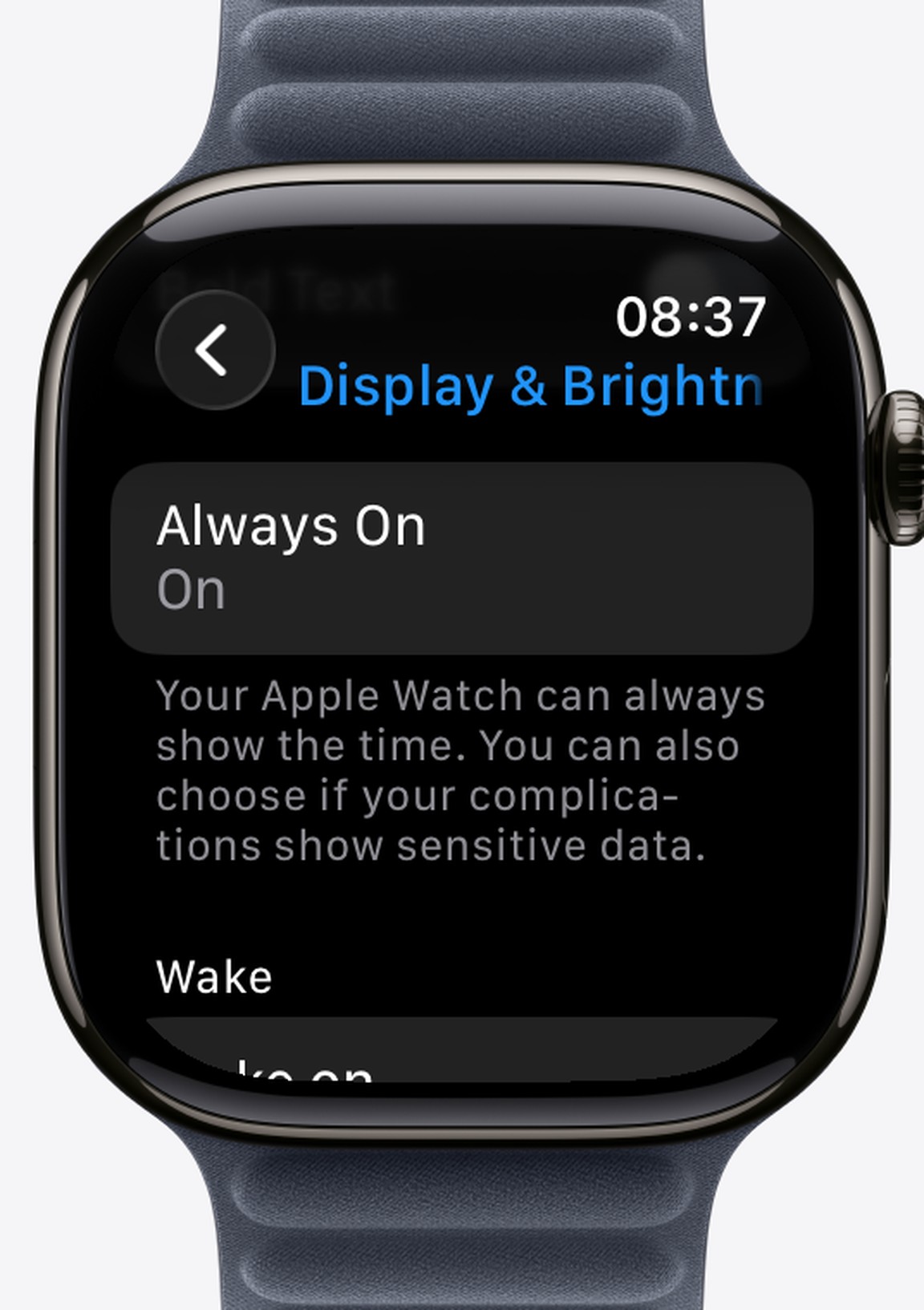
Switch it off for one full day and compare. If that fixes it, you can leave it off, or keep it on and accept the cost — but at least you know.
2. Count your GPS workouts
Continuous GPS is the heaviest thing a watch does. Apple rates the Series 12 at up to 10 hours of outdoor workout tracking against 24 hours of normal use, so a two-hour ride takes a far bigger bite than two hours of ordinary wear. A long hike or a marathon is not a battery fault.
3. Trim background app refresh
In Settings > General > Background App Refresh, turn it off for anything you do not need updating behind your back. Apps that poll a server — weather, transit, delivery tracking — are the ones worth switching off first.
4. Turn off the notifications you never read
Every alert wakes the screen and taps the Taptic Engine. Open the Watch app on your iPhone > Notifications and switch off apps you ignore anyway. This is the one fix that improves the battery and the experience at the same time.
5. Give a watchOS update a day or two
After a major update the watch re-indexes data and re-syncs with the iPhone in the background, and battery life looks worse for a day or two before settling. If the drain started the day you updated, wait before changing anything else.
6. Check the battery's actual health
Settings > Battery > Battery Health shows maximum capacity. Apple considers a battery consumed when it holds about 80% of its original capacity; below that, a watch that lasted all day when new genuinely will not any more, and a battery service is the real fix rather than another settings change.
What about Low Power Mode?
It is the blunt instrument that works: it turns off the always-on display, background heart readings and some background refresh, and roughly extends the Series 12 from 24 to 38 hours. Good for a long day; not a diagnosis.
Q: Why did my Apple Watch battery suddenly get worse?
A: The usual causes are a recent watchOS update still settling, a new app refreshing in the background, or the always-on display being switched on again after a reset.
Q: Does Always On really use that much battery?
A: It is the largest optional drain on models that have it. Switching it off for a day is the fastest way to measure its cost on your own watch.
Q: How long should an Apple Watch last on a charge?
A: Apple rates the Series 12 at up to 24 hours of normal use, the SE 3 at 18 hours and the Ultra 4 at 50 hours.
Q: When is the battery itself the problem?
A: When Settings > Battery > Battery Health shows maximum capacity near or below 80%.
Apps that store files on the Watch itself, like the iWatchly ones, play from local storage rather than streaming, which costs less battery than pulling data over the air.
Read next
Restart, Force Restart or Unpair: Which Apple Watch Reset to Use
Three resets, three different jobs. Use the gentlest one that fixes your problem and keep your data.
3 min read
Apple Watch Not Getting Notifications? Work Through This List
Notifications go to the iPhone or the Watch, never both. Six checks, in the order that finds the culprit fastest.
3 min read
How to Make an Apple Watch Battery Last Two Days
Which settings cost the most, what Low Power Mode actually turns off, and the charging habit that keeps the battery healthy for years.
4 min read