- watchOS
- Apple Watch notifications
- troubleshooting
- Do Not Disturb
Apple Watch Not Getting Notifications? Work Through This List
By Kalyani Lokireddy
A notification goes to your iPhone or to your Apple Watch, never to both. While you are using the iPhone, alerts stay on the iPhone; the Watch only takes over when the iPhone is locked or asleep, you are wearing the Watch, and the Watch is unlocked. Most "my Watch stopped buzzing" cases are this rule working as designed, or one quiet setting. Work down this list in order.
1. Were you on your iPhone at the time?
watchOS says it plainly in Settings > Notifications:
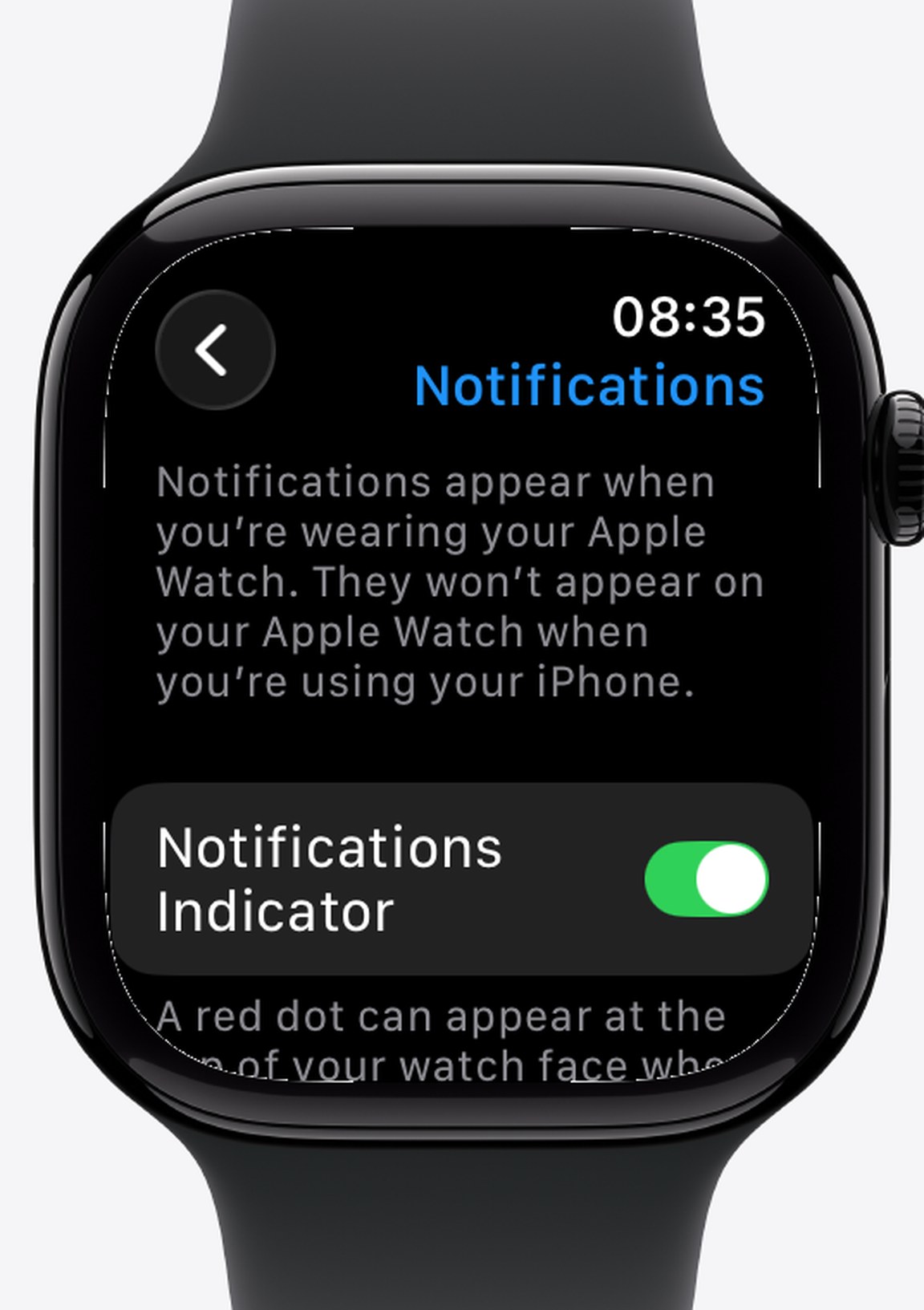
If alerts arrive on the phone while it is in your hand and on the Watch once the phone is locked, nothing is broken.
2. Is a Focus on — on either device?
A crescent moon at the top of the watch face means Do Not Disturb. And because the Watch ships with Mirror my iPhone switched on, a Focus that starts on the iPhone silences the Watch too — a Sleep Focus that never got turned off is the classic Monday-morning culprit.
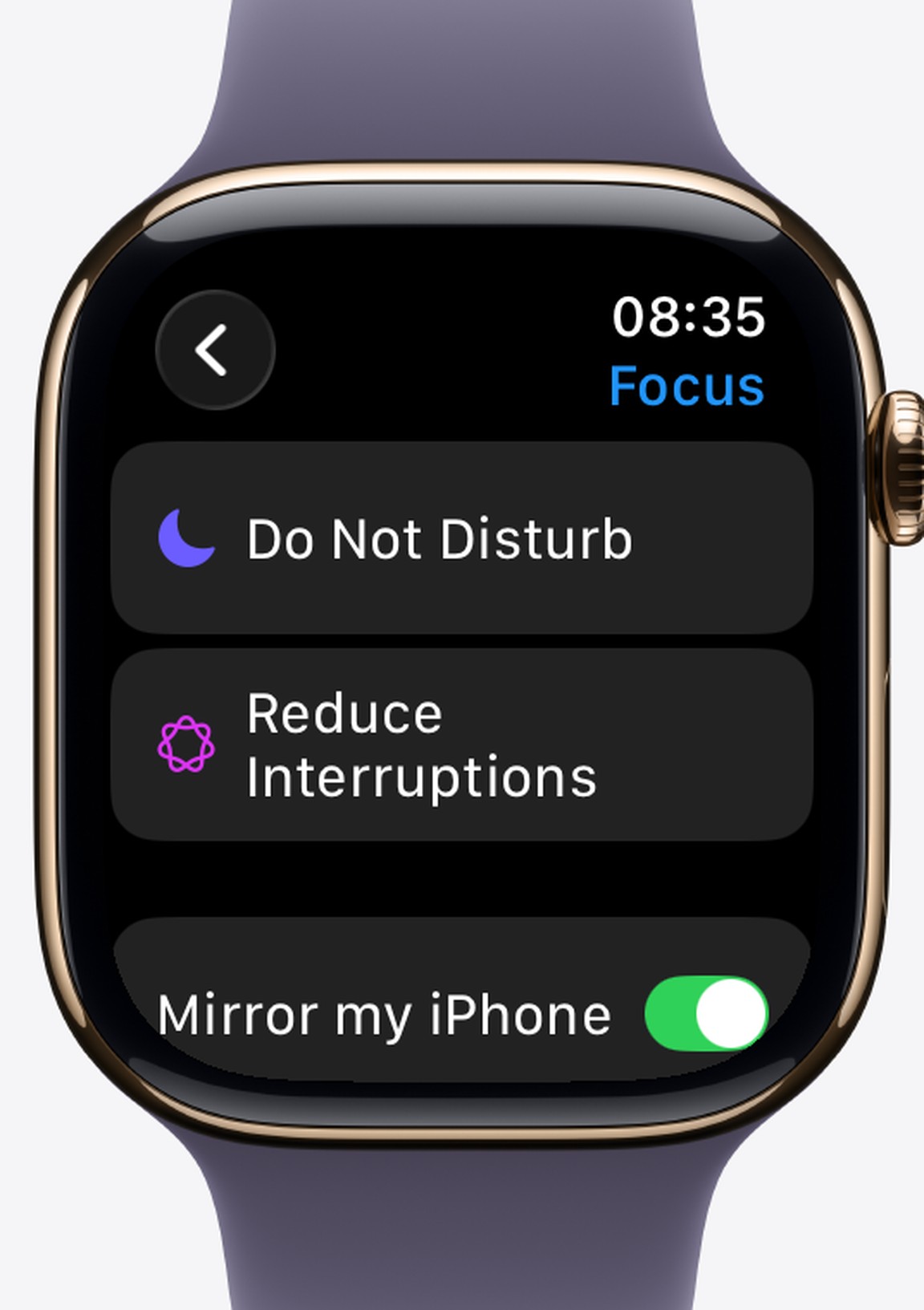
Swipe up into Control Center on the Watch and tap the moon to end it, or check Settings > Focus on both devices.
3. Silent mode is not the problem — wrist detection can be
Silent mode only mutes sounds; you still get the tap on the wrist. But if Wrist Detection is off (Settings > Passcode on the Watch), or you are not wearing the Watch, or it is still locked after you put it on, notifications stay on the iPhone. Type your passcode once after putting the Watch on.
4. Is the Watch even connected?
A red iPhone silhouette or a red X at the top of the watch face means no connection, and notifications cannot be handed over. Check that Airplane Mode is off on the Watch, Bluetooth is on at the iPhone, and the two are within range — then give them a few seconds.
5. Check that one app's own setting
If only one app has gone quiet, open the Watch app on the iPhone > Notifications and find it in the list. Apps mirror the iPhone's notification settings unless set to Custom — and an app that is not allowed to notify on the iPhone has nothing to mirror. Scheduled summaries on the iPhone also hold back the apps they cover.
6. Restart both devices
The unglamorous fix that clears a stuck session: restart the Watch and the iPhone, then unlock both. If notifications still fail everywhere after all six checks, unpairing and re-pairing the Watch (which makes a fresh backup first) is the last resort.
Q: Why do notifications go to my iPhone and not my Apple Watch?
A: That is the design: whichever device you are actively using gets the alert. The Watch receives notifications only while the iPhone is locked or asleep.
Q: Why did my Watch go silent after I set a Sleep Focus on the iPhone?
A: The Watch mirrors iPhone Focus modes by default. End the Focus on the iPhone, or turn off Mirror my iPhone in the Watch's Focus settings.
Q: Does silent mode stop notifications on the Apple Watch?
A: No. Silent mode mutes sounds but keeps the wrist tap. Do Not Disturb is what stops alerts.
Q: Do I need to re-pair my Apple Watch to fix notifications?
A: Almost never. Focus mirroring, wrist detection and a dropped connection explain most cases; re-pair only after everything else fails.
iWatch PDF, iWatch Videos and the other iWatchly apps are built for the Apple Watch you already wear.
Read next
Restart, Force Restart or Unpair: Which Apple Watch Reset to Use
Three resets, three different jobs. Use the gentlest one that fixes your problem and keep your data.
3 min read
Apple Watch Battery Draining Fast? Six Settings to Check
Before you blame the battery, check Always On, workout GPS, background refresh and the notifications you never read. Each one is a known drain.
3 min read
Apple Watch Disconnected From iPhone? Read the Icon First
A red iPhone silhouette, a red X or a green phone each mean something different. Identify the symbol, then fix the right thing.
2 min read