- travel
- iPhone tips
- camera translation
- AI Watch Translator
Live Camera Translation on iPhone: Point and Read
By Kalyani Lokireddy
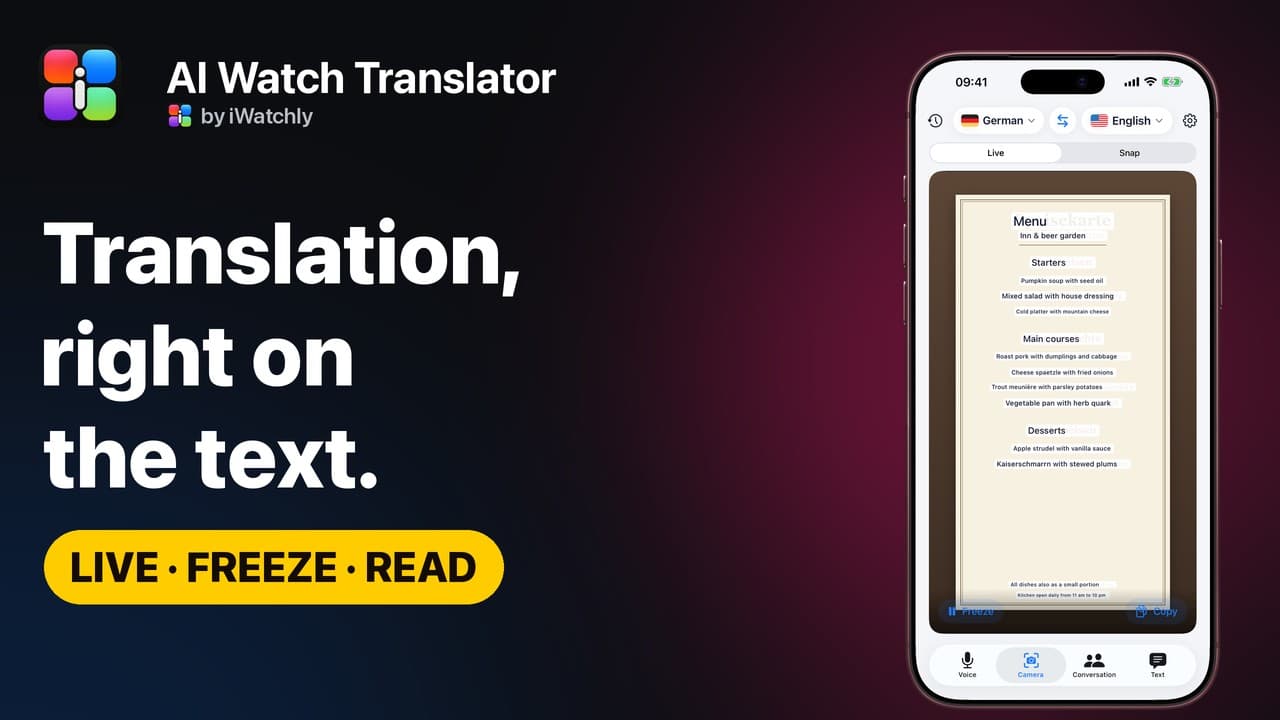
Live mode in AI Watch Translator translates whatever your iPhone camera sees and draws the translation over the original text as you move. Freeze holds the picture still, and Read turns everything in the frame into a list you can scroll.
How do you use live translation?
- Open the Camera tab and choose Live.
- Point at the text, such as a menu, a departures board or a shelf of labels. Translations appear on top of it.
- Tap Freeze to hold the frame, and Resume to carry on. Copy takes the translated text with you.
- Tap Read to see everything in the picture as a list, original under each line. Play it aloud or copy it.
When is Read better than the overlay?
An overlay suits a glance: a sign, a price, a street name. A list suits reading: a leaflet, the back of a box, a page of instructions. Freeze first, then Read, and you can go through it at your own pace.
Does live translation work offline?
Yes. Recognition and translation happen on your iPhone, so after a one-time download of both languages, Live works without a connection. A few language pairs are not available for Live yet, and the app says so when you pick one.
Is it free?
Live is part of Premium. On the free plan you can still translate two photos a day with Snap.
Q: Does Live need the internet? A: No, once both languages are downloaded.
Q: Why can't I use Live for my languages? A: Not every pair is available on the device yet. The app tells you when that is the case.
Q: Does Live save what the camera sees? A: No. Camera frames are processed on your iPhone and never leave it.