- Translate Now
- travel
- iPhone tips
- camera translation
Translate a Menu or a Sign With Your iPhone Camera
By Kalyani Lokireddy
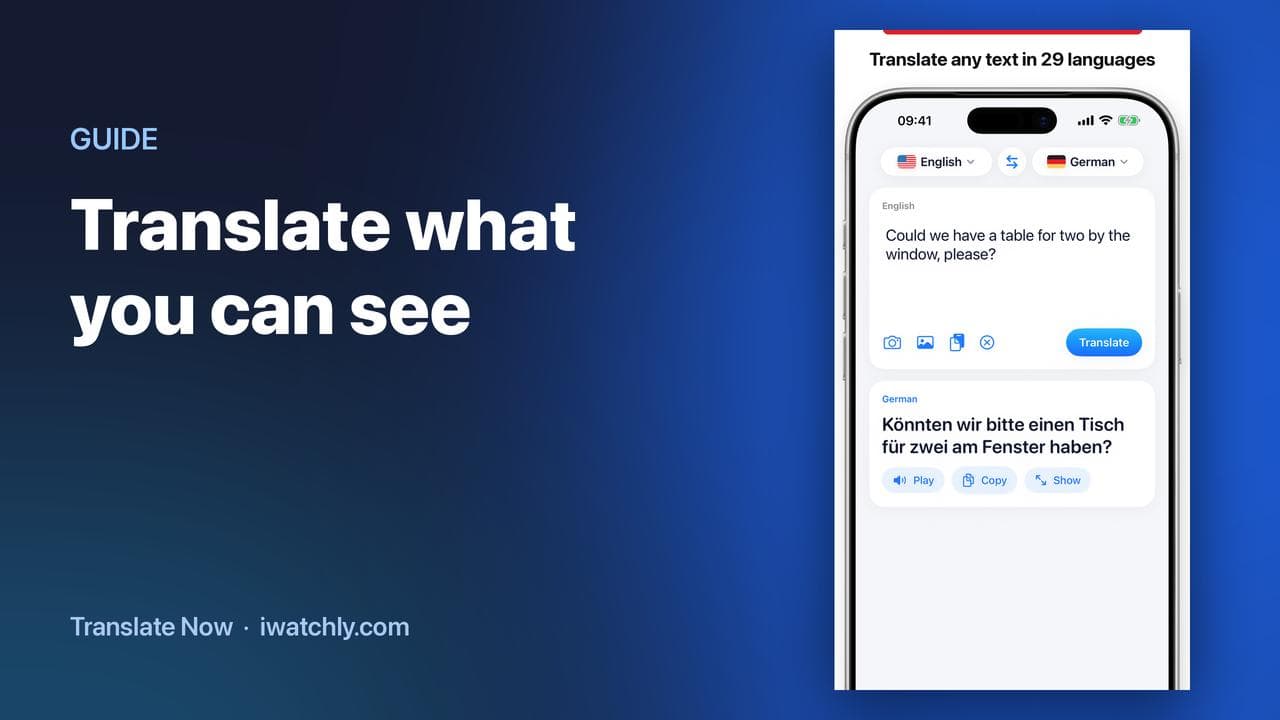
Translate Now can read printed text from your iPhone's camera or from a photo, and translate it into your language. It is the fastest way through a menu, a station sign, a medicine label or a form you cannot read.
It needs an internet connection: the text is read on the phone, then sent to our translation service. There is no offline translation.
How to do it
- Open the Text tab.
- Tap the camera to point at the text, or the photo button to use a picture you already took.
- Check the recognised text, then translate it into your language.
Camera and photo translation are part of Premium. Typed and pasted text works on the free plan, with five translations a day.
Getting a good read
- Fill the frame with one block of text. A whole menu page at once works less well than one section at a time.
- Light it evenly. Glare on laminated menus and glossy labels is the usual cause of a bad read.
- Hold still for a moment, or take a photo and translate that instead.
- Check anything that matters. For allergens, doses and legal text, confirm with a person.
When typing is better
Handwriting, decorative fonts and very small print are hard for any camera. If the result looks wrong, type the few words you need, or paste them from a message.
Frequently asked questions
Q: Does camera translation work offline? A: No. Reading the text happens on the phone, but translating it needs a connection.
Q: Is camera translation free? A: It is part of Premium. The free plan covers typed, pasted and spoken translation, five a day.
Q: Can it translate a photo I already took? A: Yes, with the photo button in the Text tab.
Q: How many languages does it cover? A: 29.
Read next
Travel Phrase Books You Can Reach in Seconds
Save the sentences you always need, group them per trip, and have them on your wrist — with the translation already done.
2 min read
Talk Face to Face with Conversation Mode
One iPhone between two people: the screen splits, the top half faces them, and each side has its own language and microphone.
2 min read
How to Translate on Apple Watch
Speak into the Watch, read the translation, hear it out loud and let the other person reply — without taking your phone out.
2 min read