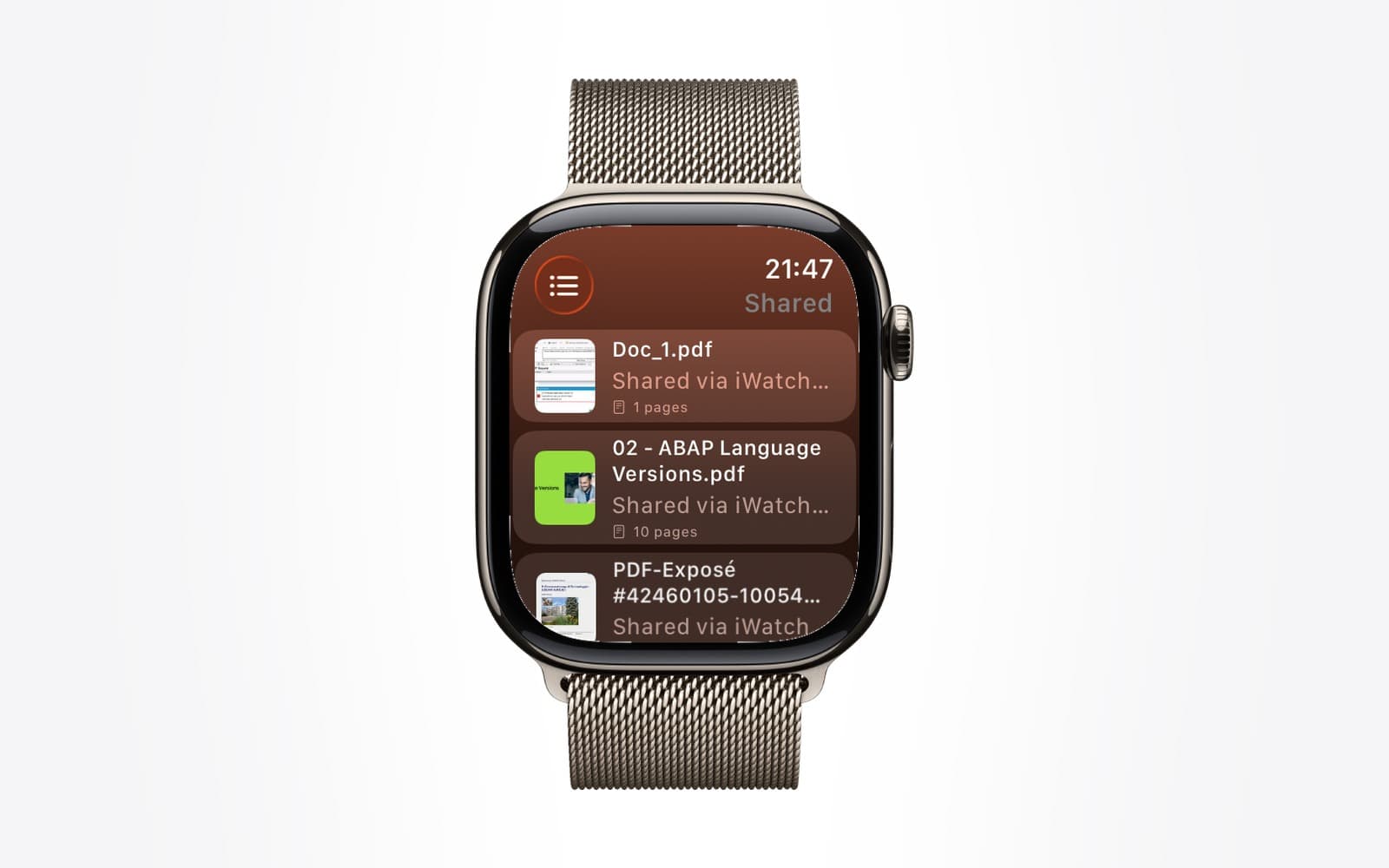
- Apple Watch PDF
- iWatch PDF
- sharing
- collaboration
How to Share a PDF With Another Apple Watch User (and Take It Back)
By Kalyani Lokireddy
To share a PDF from iWatch PDF, open the document, choose Share, and enter the other person's email address. If they have an iWatch PDF account with that address, the document appears in their library and on their Apple Watch; if not, they get an email and it is waiting when they sign up. You can see whether they have opened it, and you can stop sharing at any time.
That is the whole mechanism. The rest of this piece covers the details people ask about: what the recipient can do, what happens with Apple's hidden email addresses, and how revoking works.
What does the other person get?
A read-only copy of the document in their own library, marked as shared with them and showing who it came from. They can read it on their iPhone, download it to their Apple Watch for offline reading, and open it on iwatchly.com. They cannot rename it, delete it for you, share it onward, or run Ask this PDF and Test Yourself on it; those work on documents a person owns.
Your original is untouched. Sharing sends access, not a copy you lose control of.
What does "pending" mean?
A share is pending until the recipient opens iWatch PDF and the document is delivered to them. Once that happens the status changes to opened. If it stays pending for days, the usual reasons are that they have not opened the app since you shared, or the email address you entered is not the one on their account.
Why does sharing fail with an Apple "hide my email" address?
This is the case that catches people. When someone signs in with Apple and chooses to hide their email, Apple gives the app a private relay address ending in privaterelay.appleid.com. Their account is registered under that address, not the one they read mail at. If you share to their real address, there is no account with that address, so the share waits for a sign-up that never comes.
The fix is to ask them for the address shown on their Account page, in the app or on iwatchly.com, and share to that. Mail to a relay address is forwarded by Apple, so the notification still reaches them.
How do you stop sharing?
On iwatchly.com, open Shared in the sidebar. Under "Shared by you" each row shows who has the document and whether they have opened it, with a control to revoke. Revoking removes the document from their library and from their Watch the next time it syncs. It does not touch your copy.
What about documents shared with you?
They appear in the same Shared page under "Shared with you", and in the app alongside your own documents. New ones are marked until you open them.
Q: Does the other person need Pro?
A: No. Receiving and reading a shared document works on the free plan.
Q: Can I share with someone who does not have an iPhone?
A: They need an iWatch PDF account, which today means the iPhone app. Once they have one, they can read the shared document on iwatchly.com from any computer.
Q: Is there a limit on how many people I can share with?
A: One share per person per document; share the same document with as many people as you like.
Q: Will they see my other documents?
A: No. A share is one document. Nothing else in your library is visible to them.
The short version
Share to the email address on the other person's iWatch PDF account, watch the status turn to opened, and revoke from the Shared page when you are done. They get a read-only copy on their phone, Watch and browser; you keep yours.
iWatch PDF is available on the App Store.
Read next
Starred PDFs: Find Your Most-Used Files Fast on Apple Watch
Star a PDF in iWatch PDF on the iPhone and it waits under Starred on your Apple Watch, sorted A to Z, two taps from the home screen.
2 min read
Apple Watch App Stuck Loading? Sign In From the iPhone
Most watch apps take their sign-in from the iPhone app. Open it, stay signed in, keep the phone close, then tap Sync with iPhone on the watch.
2 min read
What Counts Against the Monthly AI Allowance in iWatch PDF
Why the allowance is measured in tokens rather than questions, what uses it, what never does, and how to read the Usage page.
3 min read