- Apple Watch PDF
- iWatch PDF
- Apple Watch tips
- starred files
Starred PDFs: Find Your Most-Used Files Fast on Apple Watch
By Kalyani Lokireddy
In iWatch PDF, star a document on the iPhone and it appears under Starred on your Apple Watch, sorted A to Z, so the few files you open every day are two taps away instead of a long scroll. Starring is free and there is no limit on how many files you star.
How do I star a PDF?
- Open iWatch PDF on the iPhone.
- Tap the three dots on the document's row.
- Choose Star. The same menu shows Unstar once a file is starred.
Stars are saved to your account, not to one device, so the Watch picks them up without any extra step.
Where is Starred on the Watch?
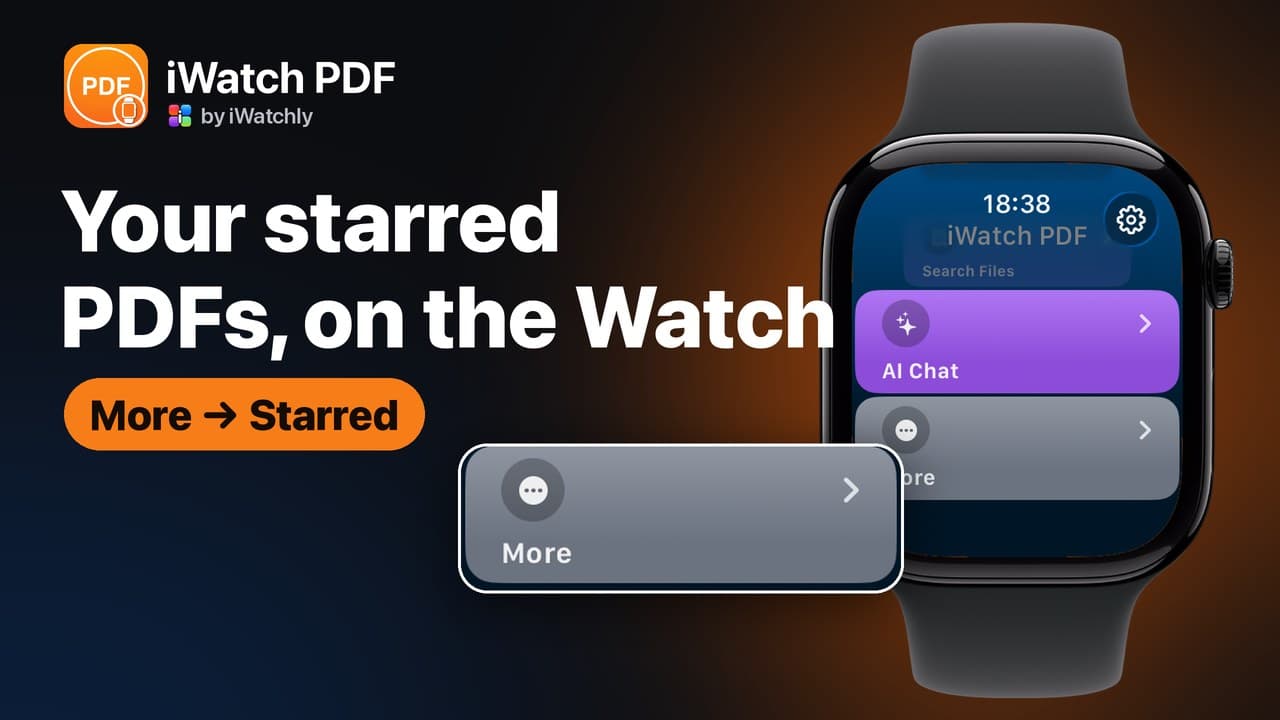
The Watch home screen keeps four tiles: My Files, Search Files, AI Chat and More. Starred is inside More, next to Shared, Review and Search Web. Open it and you get your starred documents in alphabetical order, with a count at the bottom. Tap one to open it the same way you would from My Files.
If you star something while the Watch app is open, pull the list down to refresh it. The list also refreshes itself when the iPhone app tells the Watch that your files changed.
Can I unstar from the Watch?
Yes. Swipe left on a file in Starred and tap Unstar. It leaves the list straight away, and the change reaches the iPhone too. Adding a star is done on the iPhone; the Watch only removes them.
What is worth starring?
- A checklist you run every day: a pre-flight list, an opening routine, a site-safety check.
- The one reference you keep looking up: a formula sheet, a wiring diagram, a timetable.
- This week's reading, starred on Monday and unstarred on Friday.
Stars work best as a short list. If everything is starred, you are back to scrolling.
What if the Starred list says something went wrong?
The Watch signs in through the iPhone app. If it has been a while since you opened the iPhone app, the Watch's session can run out and Starred shows an error. Open iWatch PDF on the iPhone for a moment, then go back to the Watch and tap Retry.
Frequently asked questions
Q: Can I star a PDF on the Watch itself? A: No. You star on the iPhone and unstar on either device.
Q: Is Starred part of Pro? A: No. Starring and the Starred list are available on the free plan.
Q: Where do I see starred files on the iPhone? A: Open the side panel and choose Favorites. The list is titled Starred and has its own search.
Q: In what order are starred files shown on the Watch? A: Alphabetically by name, with the total at the foot of the list.
Read next
How to Share a PDF With Another Apple Watch User (and Take It Back)
Share by email, watch it turn from pending to opened, and revoke it later. What the other person can and cannot do with your document.
3 min read
Does Apple Watch Work Without an iPhone? What Actually Runs on the Wrist
What keeps working when the phone is off, what needs Wi-Fi, and what quietly stops — a plain list, without the marketing.
2 min read
How to Make an Apple Watch Battery Last Two Days
Which settings cost the most, what Low Power Mode actually turns off, and the charging habit that keeps the battery healthy for years.
4 min read