- watchOS 27
- Apple Watch
- Apple Watch storage
- troubleshooting
Apple Watch Storage Full? What to Delete First
By Kalyani Lokireddy
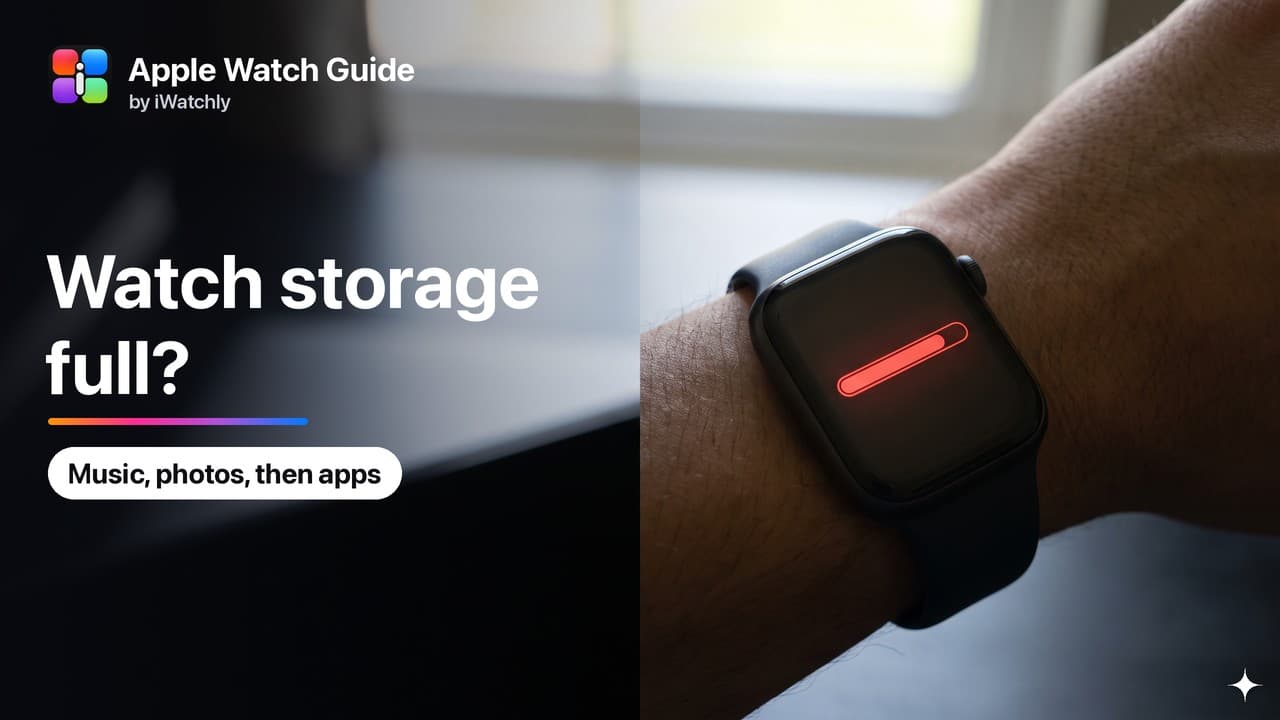
Apple Watch storage full? Delete in Apple's own order: music first, then synced photos, then apps you don't open. Restart the watch before anything else, then look at what is using the space. The steps here come from Apple's storage page and the watchOS 27 user guide.
How do I see what is using the space?
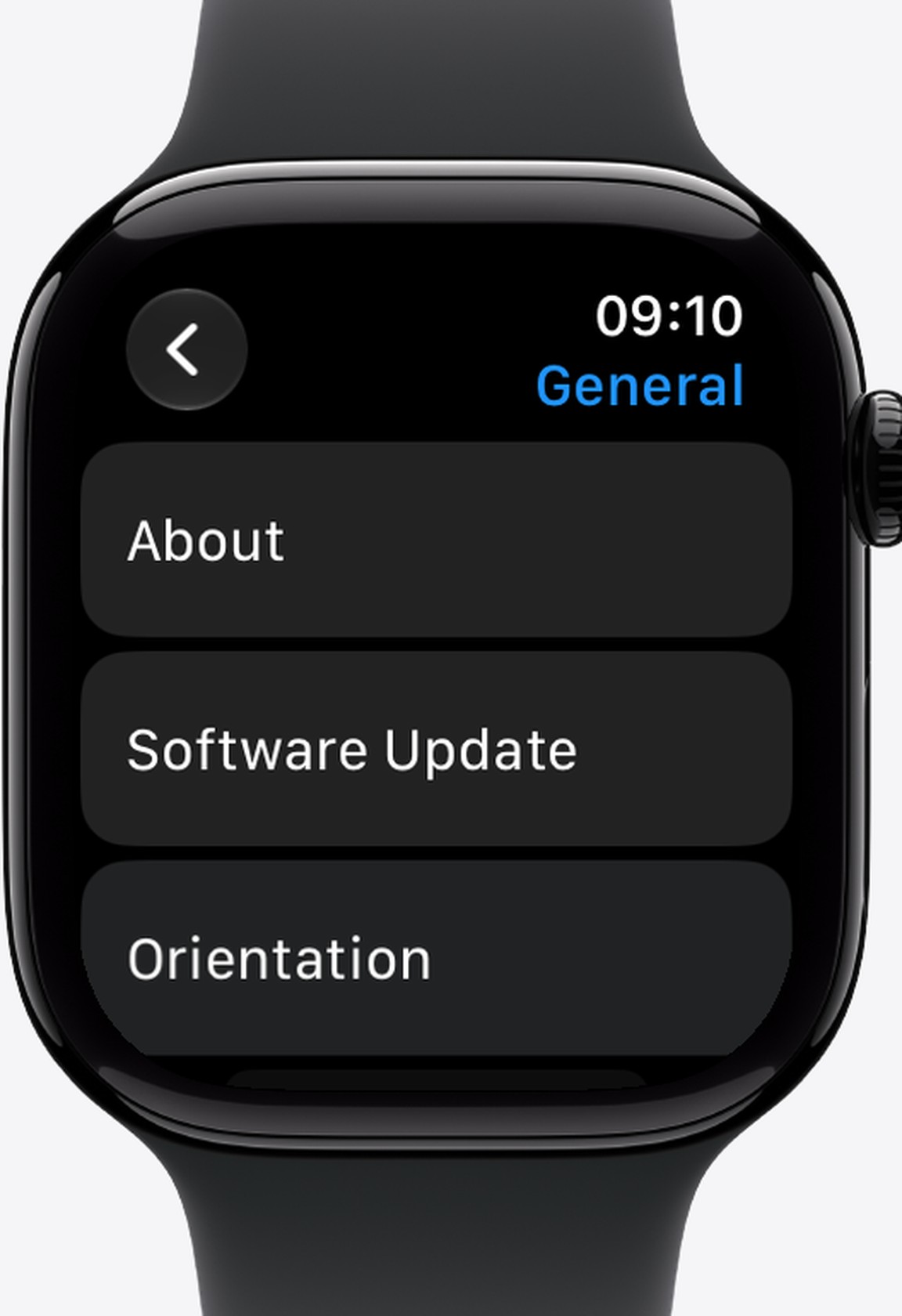
On the watch, open Settings › General › Storage. On the iPhone, open the Apple Watch app and tap My Watch › General › Storage. Apple's guide says the screen shows the total used, the amount remaining and the amount used by each app. Start with the biggest app in the list.
What should I delete first?
- Music. In the Apple Watch app, tap My Watch › Apps › Music. Tap Edit to remove albums and playlists you added, and turn off Recent Music (Apple's steps).
- Photos. Tap My Watch › Photos › Photos Limit to keep fewer, or turn off Photo Syncing (Apple's steps).
- Apps. On the watch, press the Digital Crown, touch and hold an app, then tap the delete button (Apple's steps). Not every app can be removed.
- Podcasts and audiobooks. On the watch, Settings › Podcasts sets how many Up Next episodes download. The watch also syncs up to five hours of each audiobook you add.
Why does it say full when there is nothing on it?
Apple's guide lists no "Other" or "System Data" category for the watch, and no button to clear one. Apple gives a sequence instead:
- Restart the watch and check Storage again.
- If an update will not start, open the Apple Watch app, tap General › Storage, delete the update file and try again (Apple's update page).
- Last, unpair the watch, set it up as new and update it. Then unpair once more and restore from your backup.
If the watch will not reconnect after pairing, see Apple Watch disconnected from iPhone.
How do I stop it filling up again?
Storage fills from things that sync by themselves: Recent Music, the photo album, podcast episodes. Turn off the ones you never play from the watch. For your own videos and audio, iWatch Videos keeps a file on the watch only when you choose it for that item. For what 64 GB holds, see Apple Watch storage: what fits.
Frequently asked questions
Q: Does removing music from my Apple Watch delete it from my iPhone? A: No. Apple says music you remove from the watch stays on the iPhone. The exception is Delete from Library in the watch's Music app, which removes it from all your devices.
Q: Can I put the music, photos and apps back later? A: Yes. Apple says you can add back what you removed once the update is done.
Q: Does removing an app from the watch remove it from the iPhone? A: No. It stays on the iPhone until you delete it there. Deleting an app from the iPhone does remove it from the watch.
Read next
Why Does My Apple Watch Keep Disconnecting From My Phone? 5 Causes
A watch that drops its iPhone again and again has a pattern. Match when it happens to one of five causes and fix that one.
3 min read
Restart, Force Restart or Unpair: Which Apple Watch Reset to Use
Three resets, three different jobs. Use the gentlest one that fixes your problem and keep your data.
3 min read
Apple Watch Disconnected From iPhone? 5 Fixes, in Order
A red iPhone or a red X means your Apple Watch has lost its iPhone. Five fixes, in the order Apple recommends.
5 min read