- Apple Watch without iPhone
- watchOS
- Apple Watch video
- offline playback
How to Play Your Own Videos on Apple Watch Without an iPhone
By Kalyani Lokireddy
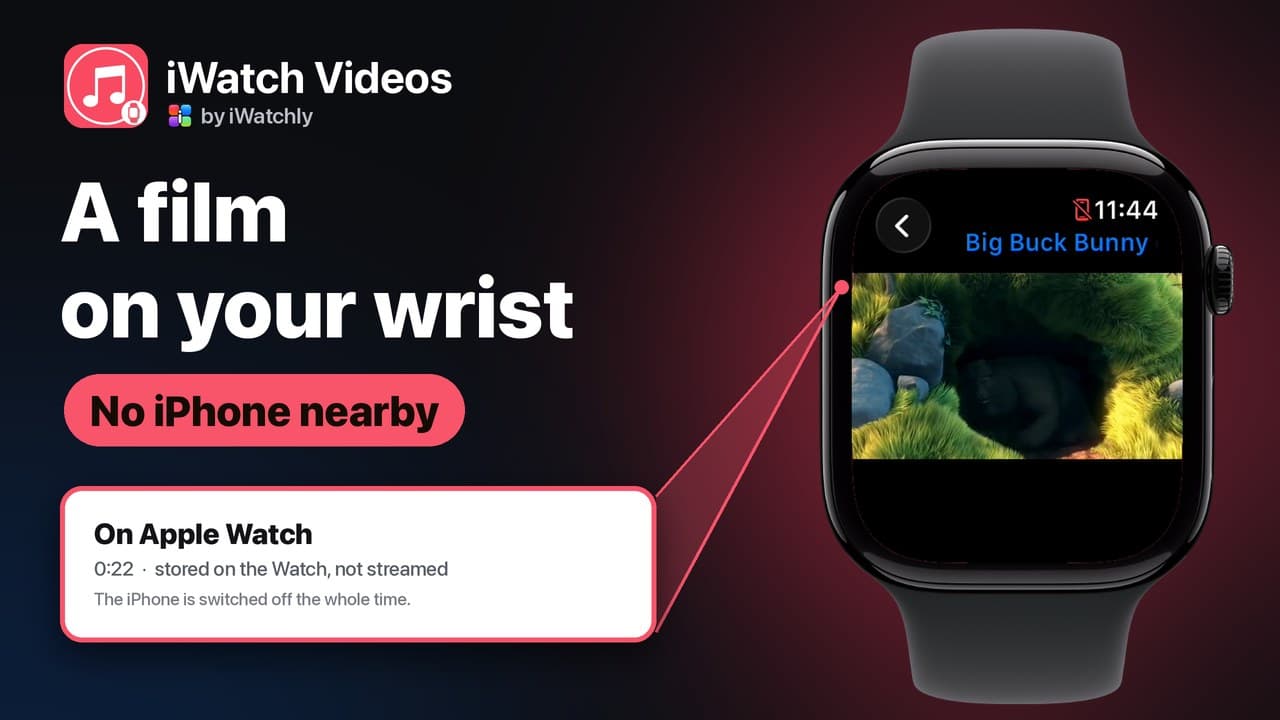
Yes — an Apple Watch can play your own video with the iPhone switched off, as long as the file was copied to the Watch beforehand. The Watch has its own storage and its own screen. Once a video sits there, playing it is a local operation: no phone, no Wi-Fi, no signal. What cannot work offline is anything that has to fetch the file at the moment you press play.
That is the whole distinction, and it decides everything else below.
What you need
- The file on the Watch, not just in an app. Being visible in a list is not the same as being stored. In iWatch Videos an item is marked On Apple Watch once its copy has finished downloading.
- Headphones for sound. Audio goes to AirPods or any Bluetooth headphones paired with the Watch.
- Space. A Watch holds far less than a phone, so a whole film is the wrong unit. A scene, an episode, a lecture segment or a workout is the right one.
How it works in iWatch Videos
Three steps, and only the first needs the phone:
- Add the video on the iPhone. Import it from Photos or Files, record audio, or record the iPhone screen with sound and keep the result as a clip.
- Save it to the Watch. Turn on Keep on Apple Watch on the phone, or tap Save to Watch on the Watch itself. A progress ring fills while the Watch-sized copy transfers.
- Play it on the Watch. Open the item and press play. The picture runs on the Watch screen and the sound goes to your headphones.
Anything not saved to the Watch still appears in the Watch's library, marked as playing from the cloud. That version needs a connection, which is precisely the case that fails on a run or a flight.
Why put a video on a watch at all?
Not to watch a feature film on a 46 mm screen. The cases that earn their place are the ones where a phone is awkward or absent:
- A recorded lecture or podcast on a walk, with the phone left at home.
- A technique clip — a drill, a stretch, a knot — checked between sets without unlocking anything.
- A screen recording of a route, a form or an app flow, kept for reference in a place with no signal.
- Audio for a run, when the point of the run is not carrying a phone.
What the free plan covers
The free plan keeps three items in your library, three on each Apple Watch, and 500 MB of storage. Pro removes the item limits and raises the storage. Pro is sold only inside the iPhone app through the App Store; nothing is sold on this website.
What does not work
- Streaming with the phone off. An item that was never downloaded cannot play from nowhere.
- Other apps' media. iWatch Videos plays files you own and import. It does not download or convert media from streaming services, and it is not built to.
- Long films. They fit badly in Watch storage and worse on a wrist. Cut the part you actually want.
Frequently asked questions
Q: Does the iPhone have to be nearby? A: Not once the video is stored on the Watch. In our own test the paired iPhone was powered down completely and the film still played from the Watch.
Q: Can I hear it without headphones? A: Pair AirPods or any Bluetooth headphones with the Watch. That is how Watch audio is meant to work.
Q: How many videos can I keep on the Watch? A: Three on the free plan, per Watch. Pro removes that limit; Watch storage becomes the real ceiling.
Q: Can I record my iPhone screen into it? A: Yes. The app can record the iPhone screen with sound, and the recording is then treated like any other item — including being saved to the Watch.
Read next
Does Apple Watch Work Without an iPhone? What Actually Runs on the Wrist
What keeps working when the phone is off, what needs Wi-Fi, and what quietly stops — a plain list, without the marketing.
2 min read
How to Put Your Own Music on Apple Watch and Play It Without the Phone
Your own audio files — not a streaming subscription — stored on the Watch and played through AirPods with the iPhone left at home.
2 min read
Can You Read a PDF on Apple Watch Without Your iPhone?
Yes — but only if the document was saved to the Watch first. Here is what works with the phone out of range, and what quietly does not.
5 min read