- Apple Watch video
- screen recording
- iPhone tips
- iWatch Videos
Record Your iPhone Screen and Watch It Later on Apple Watch
By Kalyani Lokireddy
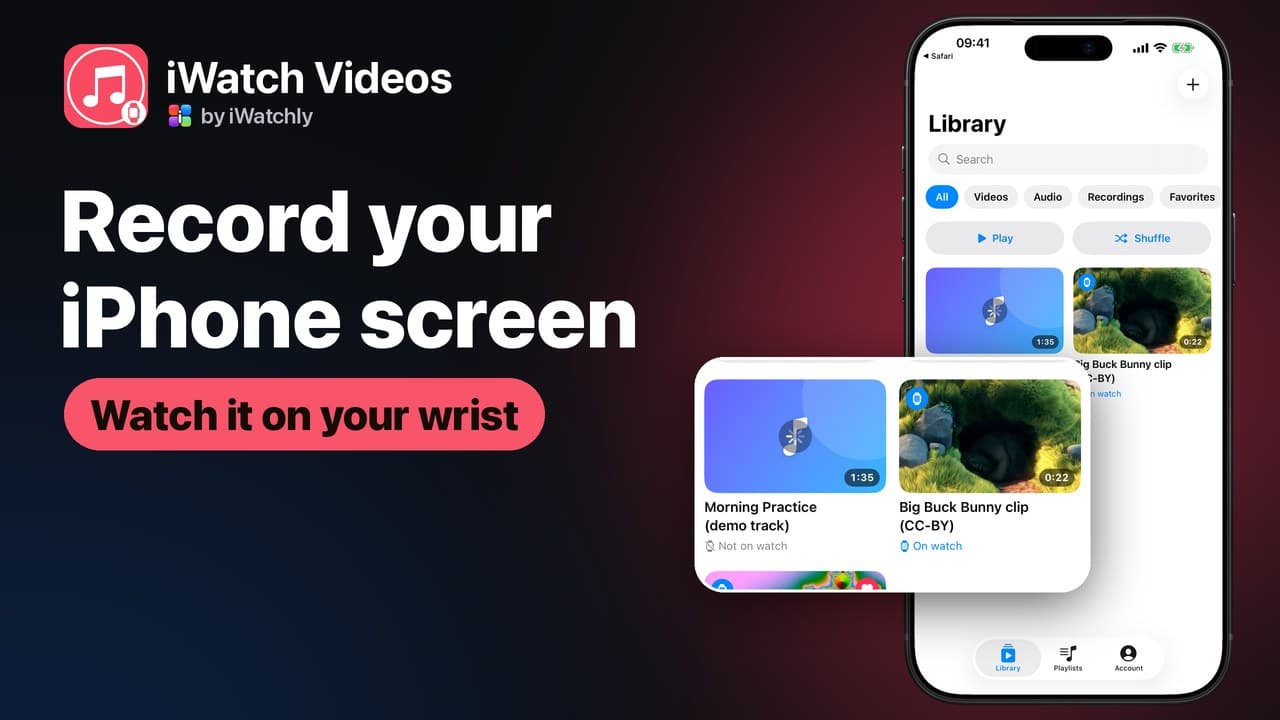
iWatch Videos can record your iPhone's screen, with the sound that is playing, and turn the recording into a clip you can keep on your Apple Watch. It uses iOS's own screen recorder, so nothing records unless you start it yourself.
How to record
- Open iWatch Videos and choose Record your screen. Tap Start, pick iWatch Videos in the recorder, then tap Start Broadcast.
- Switch to what you want to capture and let it play.
- Tap the red pill at the top of the screen to stop.
- Go back to iWatch Videos. The clip is already in your Library, compressed for the Watch.
Want your own voice on it? Turn on the microphone in the recorder before you start, and your narration is recorded along with the screen.
Getting it onto the Watch
A recording is treated like any other item in the library. Turn on Keep on Apple Watch, or tap Save to Watch on the Watch, and it plays from the Watch itself — no phone needed once it has transferred.
What it is good for
- A walkthrough you recorded yourself — how to set up a device, a route through an app, the steps of a form — kept for reference.
- Your own presentation or lesson, narrated, to rehearse away from a desk.
- A video call you are allowed to keep, or a clip from your own photo library that needs trimming by recording it.
What not to record
Only record content you have the right to keep. Streaming services, paid films and other people's videos belong to them, and their terms usually forbid recording. iWatch Videos is built for your own media; it does not download or convert anything from streaming services.
Frequently asked questions
Q: Does screen recording need Pro? A: No. A recording counts as one item in your library, and the free plan keeps three items in the library and three on each Watch.
Q: Is the sound recorded? A: Yes — the sound of what is playing, and your voice as well if you switch on the microphone in the recorder.
Q: Can it record without me knowing? A: No. Recording only happens when you start iOS's broadcast yourself, and iOS shows the red indicator the whole time.
Q: Where does the recording go? A: Into your own private iWatch Videos library, and onto your Watch when you choose to keep it there.
Read next
Translate a Menu or a Sign With Your iPhone Camera
Point the camera at printed text, and Translate Now reads it and translates it — useful for menus, signs, labels and forms.
2 min read
How to Play Your Own Videos on Apple Watch Without an iPhone
A video can play on the Watch with the phone switched off — but only if it was saved to the Watch first. What works offline, and what does not.
3 min read
Does Apple Watch Work Without an iPhone? What Actually Runs on the Wrist
What keeps working when the phone is off, what needs Wi-Fi, and what quietly stops — a plain list, without the marketing.
2 min read