- Apple Watch Live Listen
- Live Listen
- Apple Watch accessibility
- Apple Watch Control Center
How to Use Live Listen on Apple Watch (and What It Can't Do)
By Kalyani Lokireddy
To use Live Listen on Apple Watch, turn on Remote Control in the iPhone's Live Listen settings, add Hearing Controls to the watch's Control Center, then start the session from the watch. The iPhone is the microphone: it streams what it hears to your AirPods, Beats or hearing aids. The watch is the remote. Apple built it so people who are hard of hearing can follow a speaker across a room, and the Apple Watch User Guide adds start, stop, rewind and live captions on the wrist.
How do I set it up?
- Pair your AirPods, Beats or hearing device with the iPhone, not with the watch.
- On the iPhone, open Settings, tap Accessibility, then Audio & Visual, then Live Listen, and turn on Remote Control.
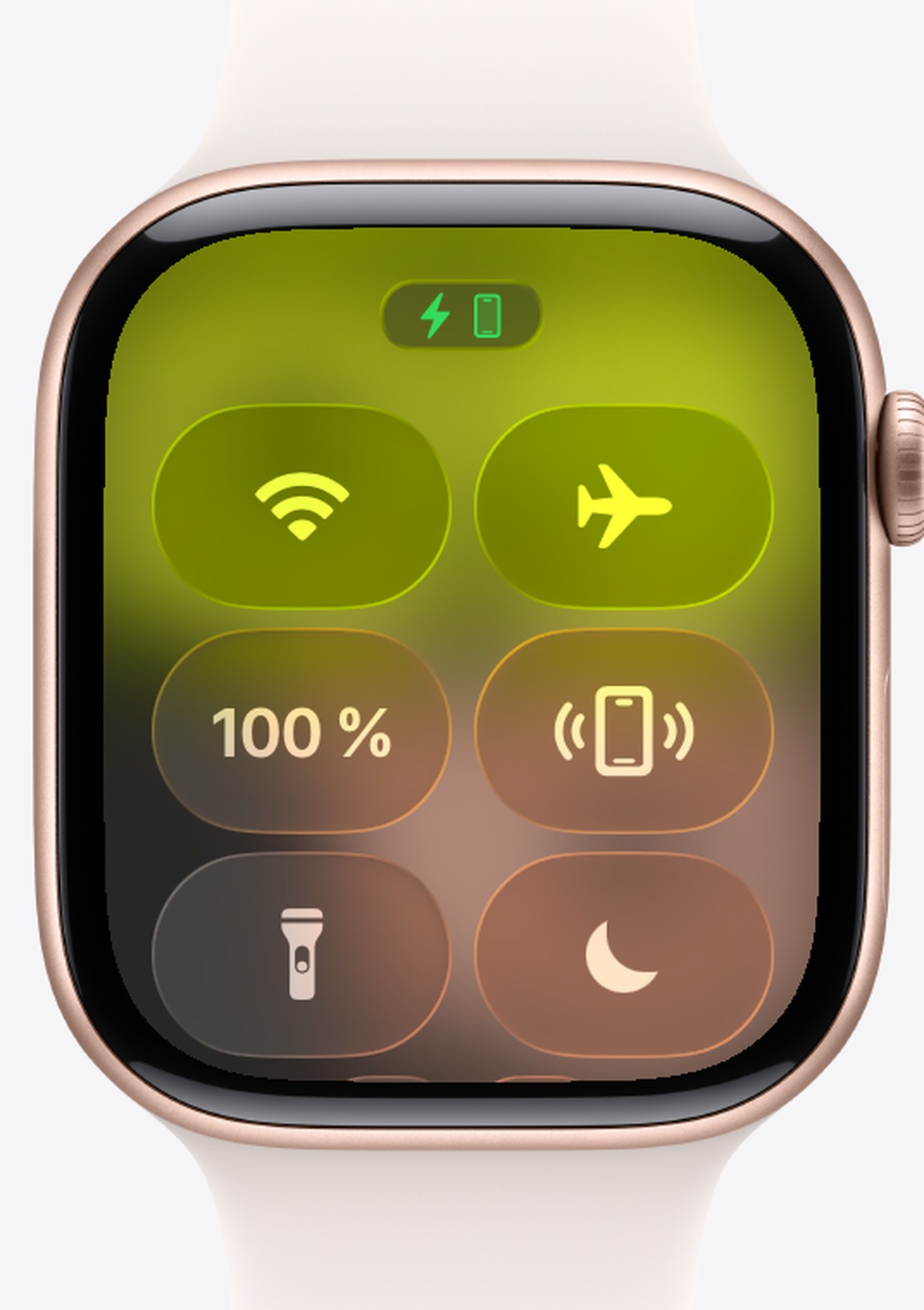
- On the watch, press the side button to open Control Center, scroll to the bottom and tap Edit.
- Tap Add, choose Accessibility, and add Hearing Controls.
Both devices must use the same Apple Account, and the watch must be connected to the iPhone. If the watch shows the red iPhone icon, fix that first.
How do I start it from the watch?
- Put the iPhone near the person or speaker you want to hear.
- Press the side button, tap Hearing Controls, and scroll down to Live Listen.
- Turn on Live Listen. The sound now reaches your headphones.
- Missed something? Tap Go back 10 seconds, then Skip back to live.
- Tap Live Listen Captions to read what the iPhone hears. Turn Live Listen off to end the session.
What are the requirements and limits?
Apple lists AirPods, AirPods Pro, AirPods Max, Powerbeats Pro, Beats Fit Pro, Powerbeats Fit and Beats 360 on iOS 14.3 or later, plus Made for iPhone hearing aids. Captions need iOS 26, are not offered in every language, and Apple says not to rely on them in an emergency. The watch cannot be the microphone, and it cannot stream to headphones on its own.
A word on privacy
Use Live Listen where everyone can see your iPhone and knows it is listening. Listening in on people without their knowledge is a breach of trust, and in many places it is against the law.
Frequently asked questions
Q: Can the Apple Watch itself be the microphone? A: No. The iPhone listens; the watch starts, stops and rewinds the session and shows the captions.
Q: Do I need AirPods? A: AirPods, a supported Beats model or a Made for iPhone hearing device, connected to the iPhone.
Q: Does it work when the iPhone is somewhere else? A: Only while the two stay connected, and the iPhone has to be near the sound you want to hear anyway.
Live Listen helps you hear; it does not translate. For a conversation in another language, AI Watch Translator on the watch does that, with a connection.
Read next
Apple Watch App Stuck Loading? Sign In From the iPhone
Most watch apps take their sign-in from the iPhone app. Open it, stay signed in, keep the phone close, then tap Sync with iPhone on the watch.
2 min read
Translate From a Widget, the Action Button or Siri
Start a translation from a widget, Control Center, the Action button, Siri or your watch face, without looking for the app.
1 min read
Live Camera Translation on iPhone: Point and Read
Live mode draws the translation right on the text as you move your iPhone. Freeze holds the view; Read lists everything in the frame.
1 min read